BA
Baluu
    • Can I Email Attendees for a Specific Event?
    • How can I view my Guestlists and check attendance?
    • Recording Online Events
    • I'm changing my Business address
    • Business Community Guidelines
    • How to get more bookings for online events
    • The Dos and Don'ts for online events
    • Adding Notes to a Customer Booking
    • How can I cancel my events in bulk?
    • Using the Description Toolbar in Event Basic Details and Emails
    • How to run a test booking on Baluu
    • How do I delete an instructor/team member?
    • How do I set a minimum age for my event?
    • How to Export Customer Data
    • What video conference platform can I use to host my online events?
    • Can I resend any auto-emails to my customers?
    • Is Baluu GDPR Compliant?
    • How do I add a new event location?
    • How to Hide, Archive or Delete an Event
    • How to Extend Gift Card Expiry Dates?
    • How to Edit Customer Details
    • Invoice Management: Marking as Paid and Cancelling Invoices
    • How to Add a Mandatory Tick Box for Terms & Conditions
    • Why Customers Encounter Errors When Trying to Cancel or Reschedule Events
    • How to Change Your Payout Schedule
    • Where to View Your Bookings and Estimated Earnings
    • How to Change Your Baluu Booking Website Link?
    • How to Update Event Availability?
    • Adding new time slots to existing by appointment availability
    • Time Off (For Appointment-Based Sessions)
Docs / FAQ's

Time Off (For Appointment-Based Sessions)

If you sell your sessions by appointment (using calendar availability), you can block time off in your calendar when you’re unavailable — for example, during holidays, training days, or personal leave.

This feature is available for appointment events only. If you wish to take time off and do not want to accept bookings for other event types, simply remove the available sessions during your time away.

How to Add Time Off

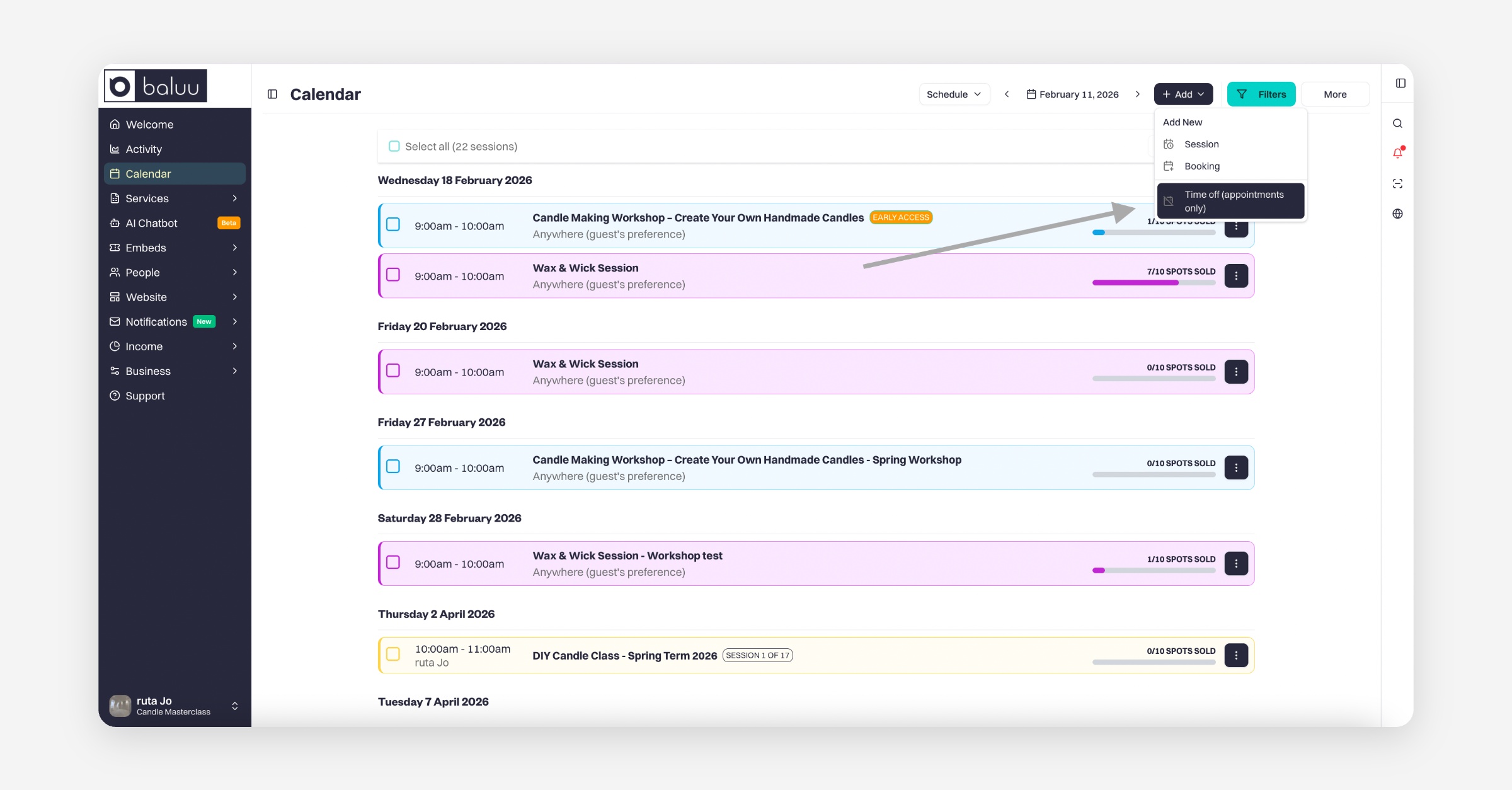
  1. Go to your Calendar.

  2. Click “Add” at the top of the page.

  3. Select “Time Off.”

Enter the details:

  • Name of the block (e.g. Holiday, Training Day)

  • Start date and time

  • End date and time

  • Optional notes

  • Option to turn this off if you’d like to restrict the time off to a specific listing (appointment events only).

  • On the same page, you also have the option to click “Manage all time off”, where you can view your time off entries, edit them, or delete them.
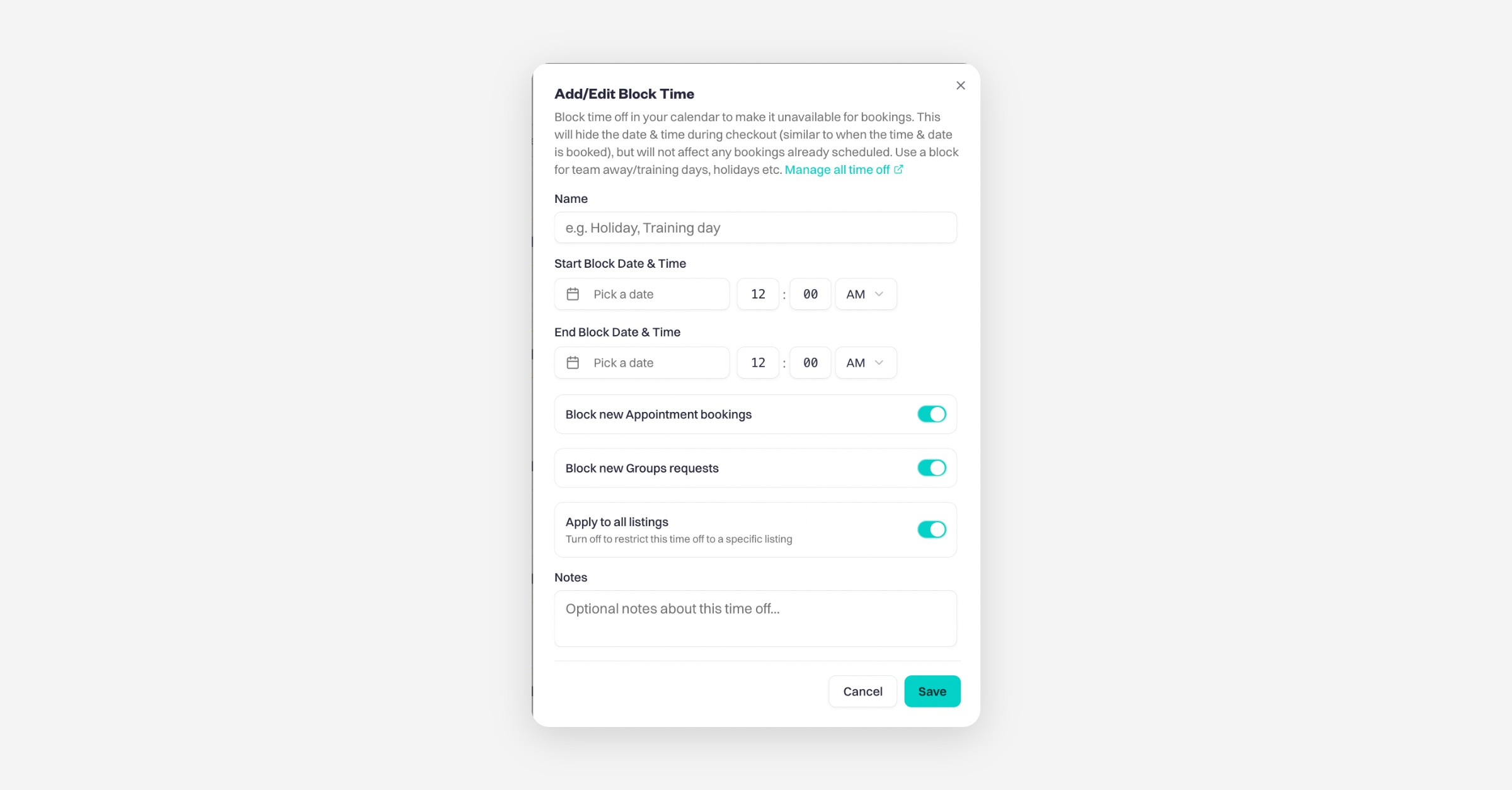
    Click “Save.”

Taking Time Off for Regular, Term Events or other

For regular or term-based events, time off does not automatically cancel sessions.

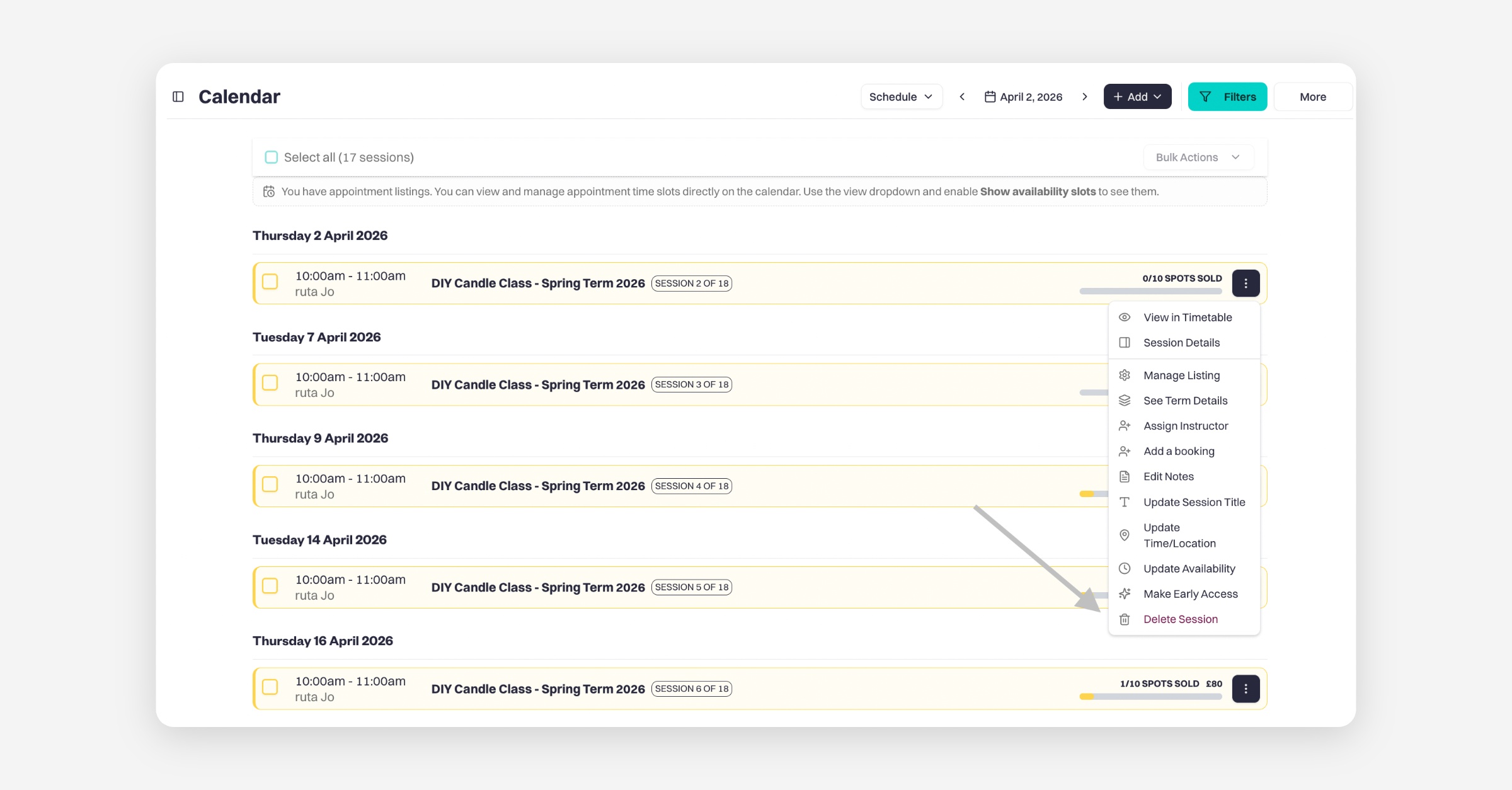
If you are planning to take time off, you will need to cancel the sessions manually:

  1. Go to your Calendar

  2. Click the three-dot menu next to the session

  3. Select Delete Session

This will remove the session from your calendar.

PrevAdding new time slots to existing by appointment availability
Was this helpful?