BA
Baluu
    • How to Add a Regular Event?
    • What is Termly Event and How to Use It (trials and drop-ins)
    • How to Create an Appointment Event?
    • Managing Tickets & Pricing
    • Can I sell products on Baluu?
    • Notes & Auto-Emails
    • What happens when I get a booking?
    • Event FAQs
    • Booking Questions
    • Images
    • Logging into your Baluu Dashboard
    • Struggling to login
    • New article
    • Step-by-step guide to create your Baluu website
    • Getting Started: Understanding Availability Types
    • Calendar View
    • Managing Reviews and Post-Event Emails in Baluu
    • How Do I Create Gift Cards?
    • How to Manage and Create Discount Codes?
    • How to Add and Manage Team Members?
    • How to Access Invoice from Baluu and Manage Billing
    • Customer Login Centre - How customers can manage their bookings on Baluu
Docs / Getting Started

Images

Adding images to your event is easy.

First head to 'Services' then press 'Listings'.
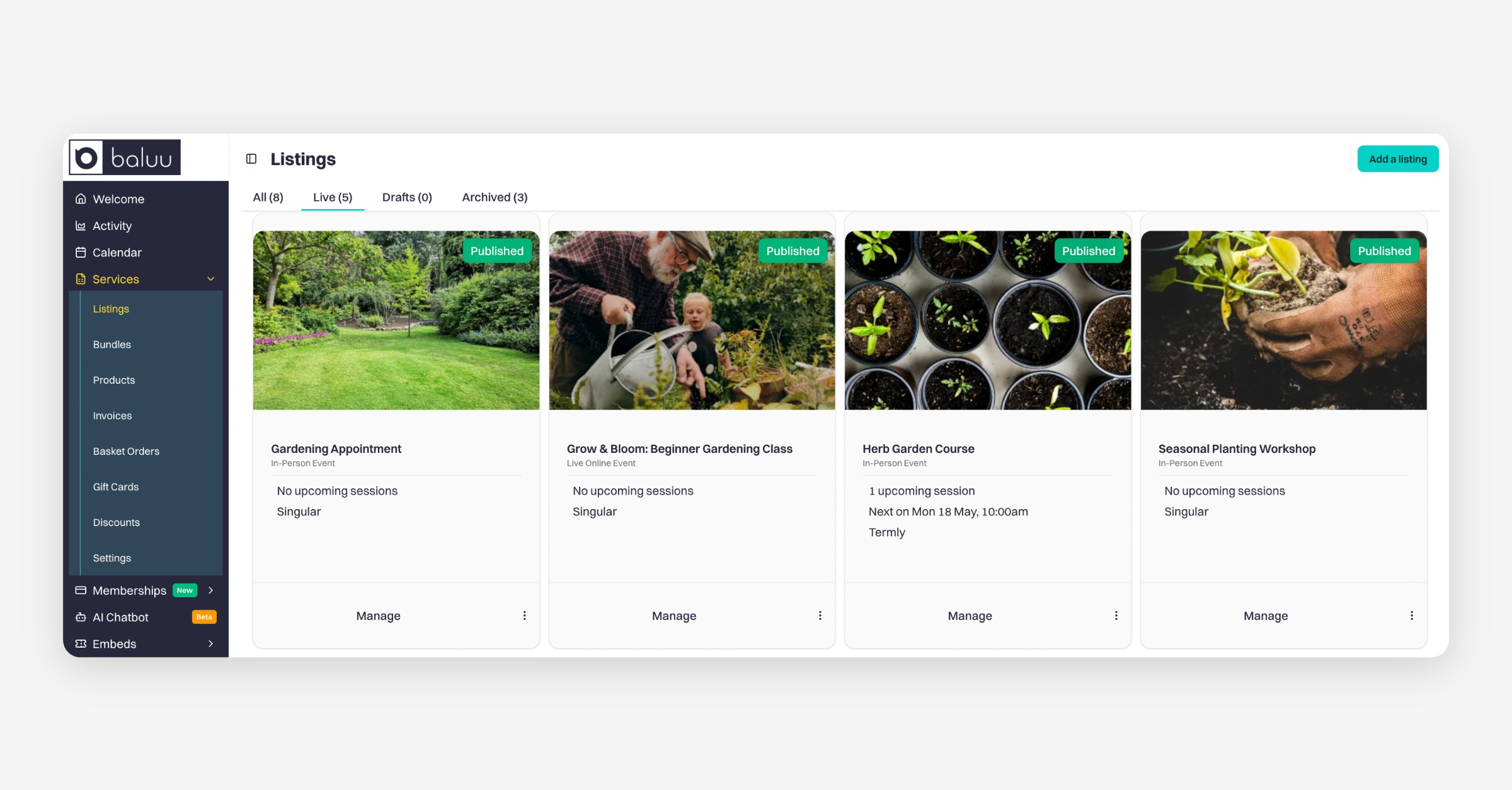
Choose 'Manage' on the event you would like to add pictures to.

On the following management screen, go to the 'Images' tile and press 'Add and Remove Images'.
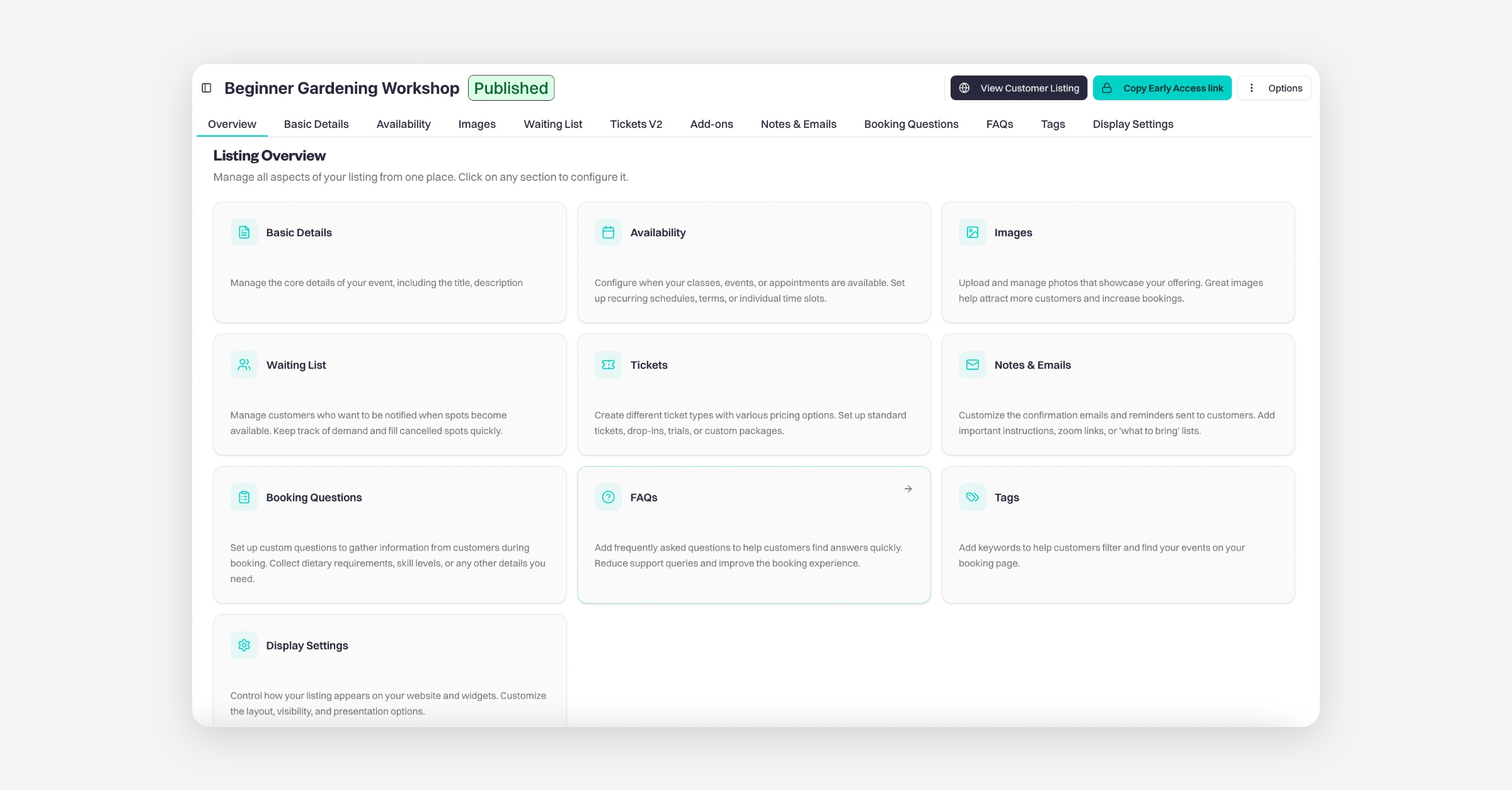
You can now see your images page.

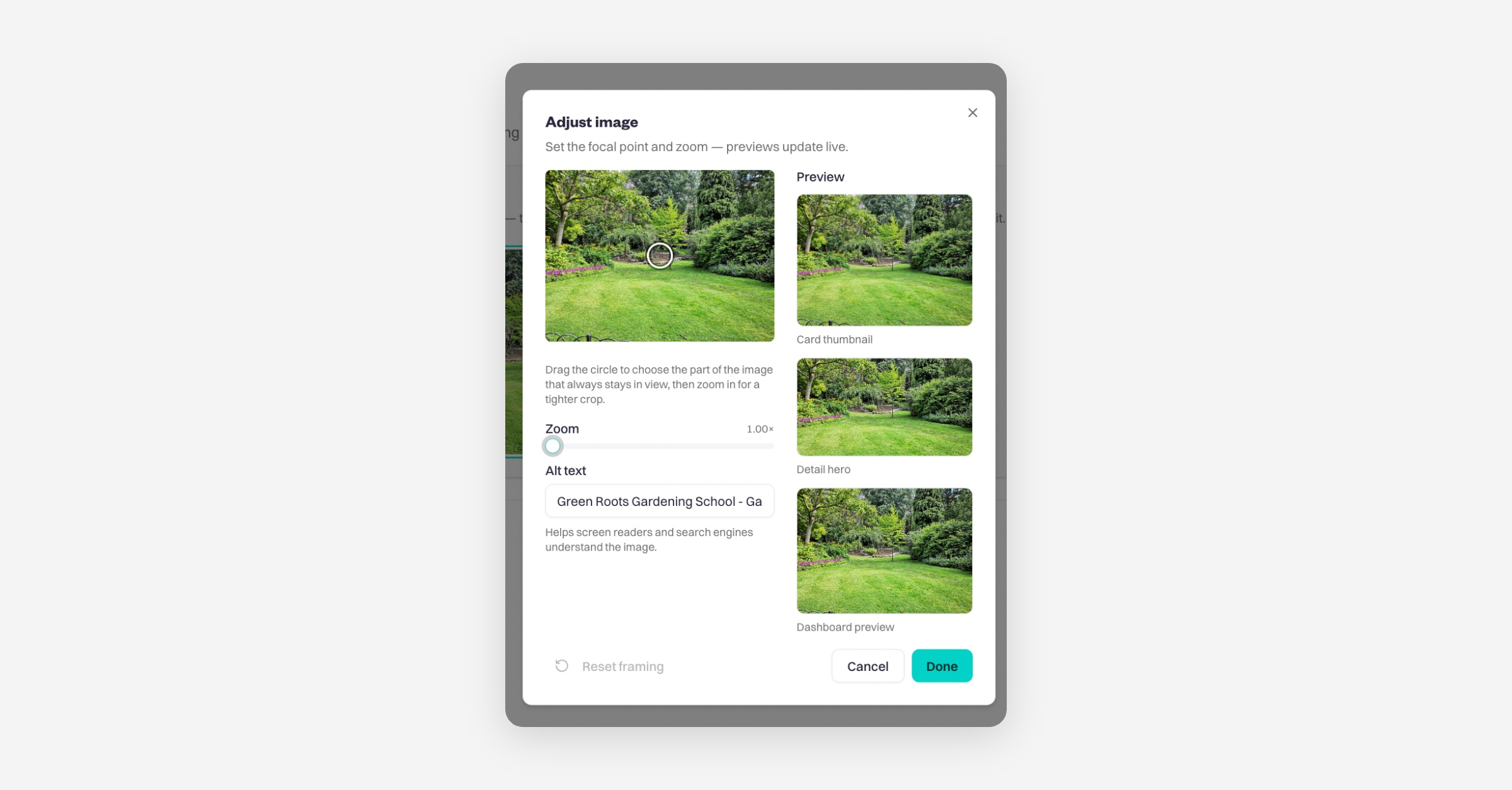
Drag and drop to reorder your images — the first image will be used as your cover image. Hover over an image to adjust the focal point and zoom level, with previews updating live as you make changes, or remove the image if no longer needed. Press 'Save Changes'.
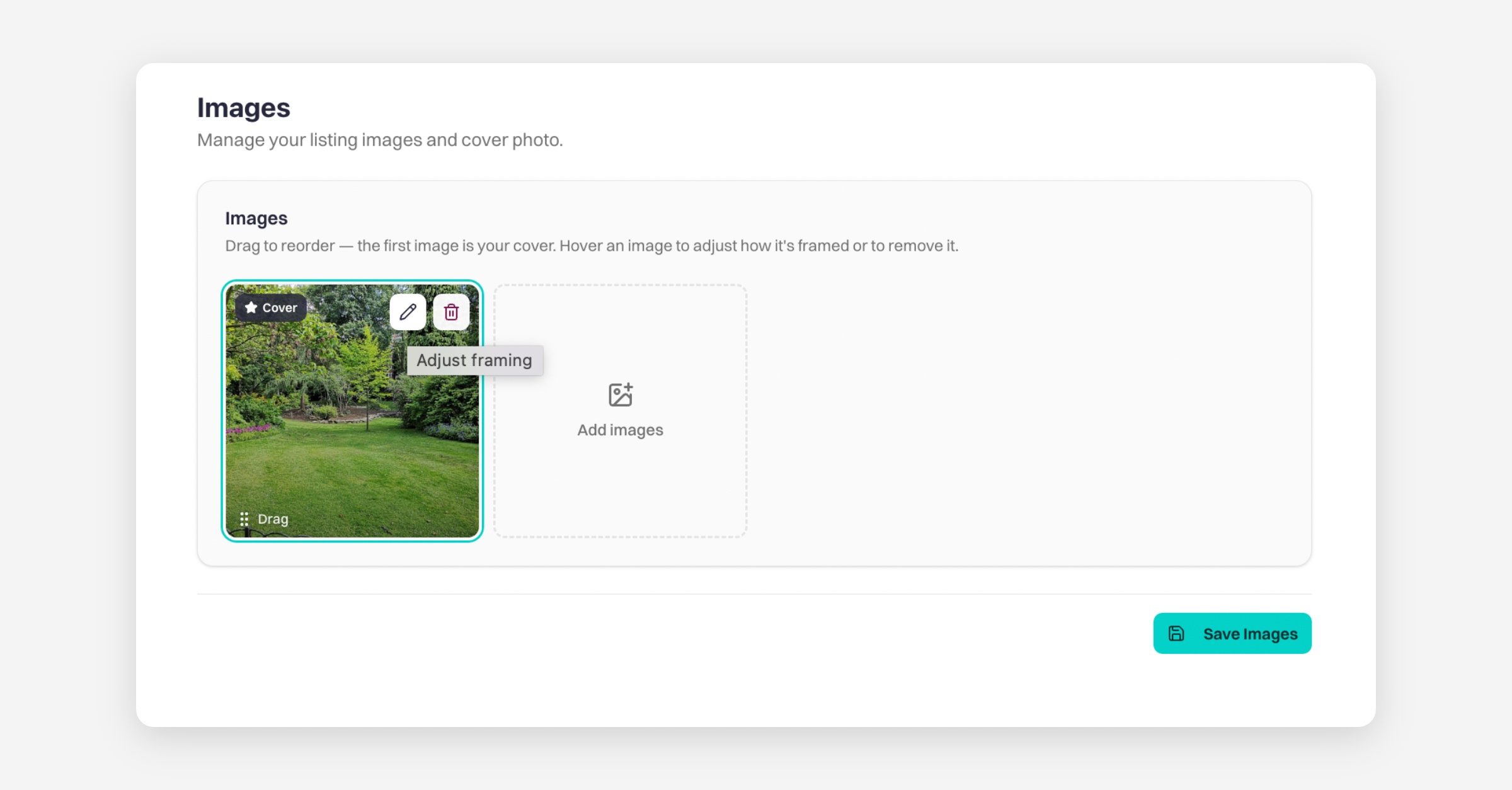
To delete images, press the bin icon in the top left of the picture.

Recommended Baluu Website Image Guidelines

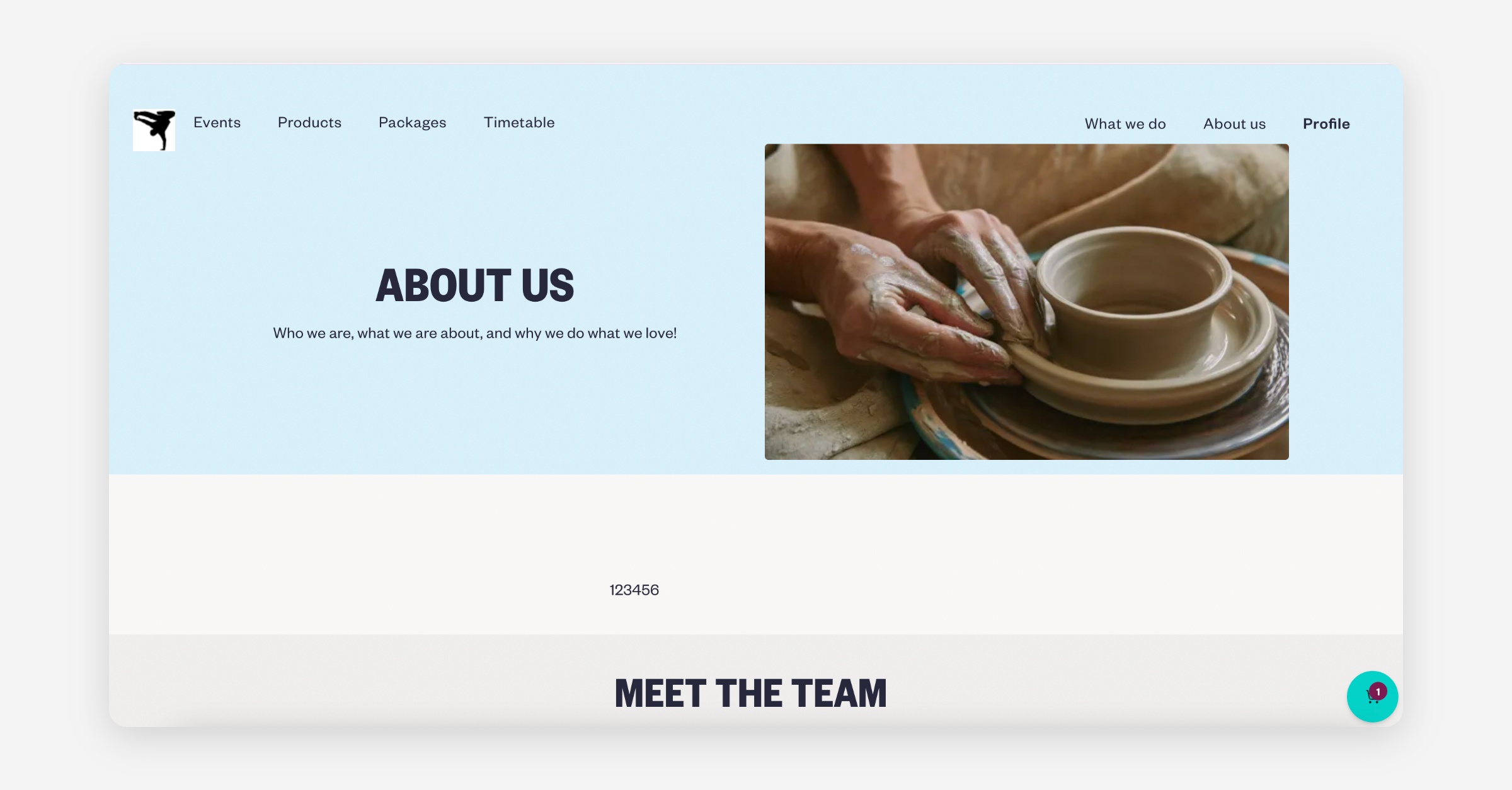
Heading / Hero / About Us Images

1400 x 788 px or similar wide landscape ratio

Use for:

  • Homepage top image

  • About Us image

  • Timetable etc.

Logo

500 x 500 px

Best as:

  • PNG

  • Transparent background

  • Centred with padding

Favicon

64 x 64 px

PNG recommended.

PrevBooking Questions
NextLogging into your Baluu Dashboard
Was this helpful?