Docs / Getting Started
Customer Login Centre - How customers can manage their bookings on Baluu
With log-in, customers can instantly view and manage their bookings and bundles, improving their experience and reducing your admin time.
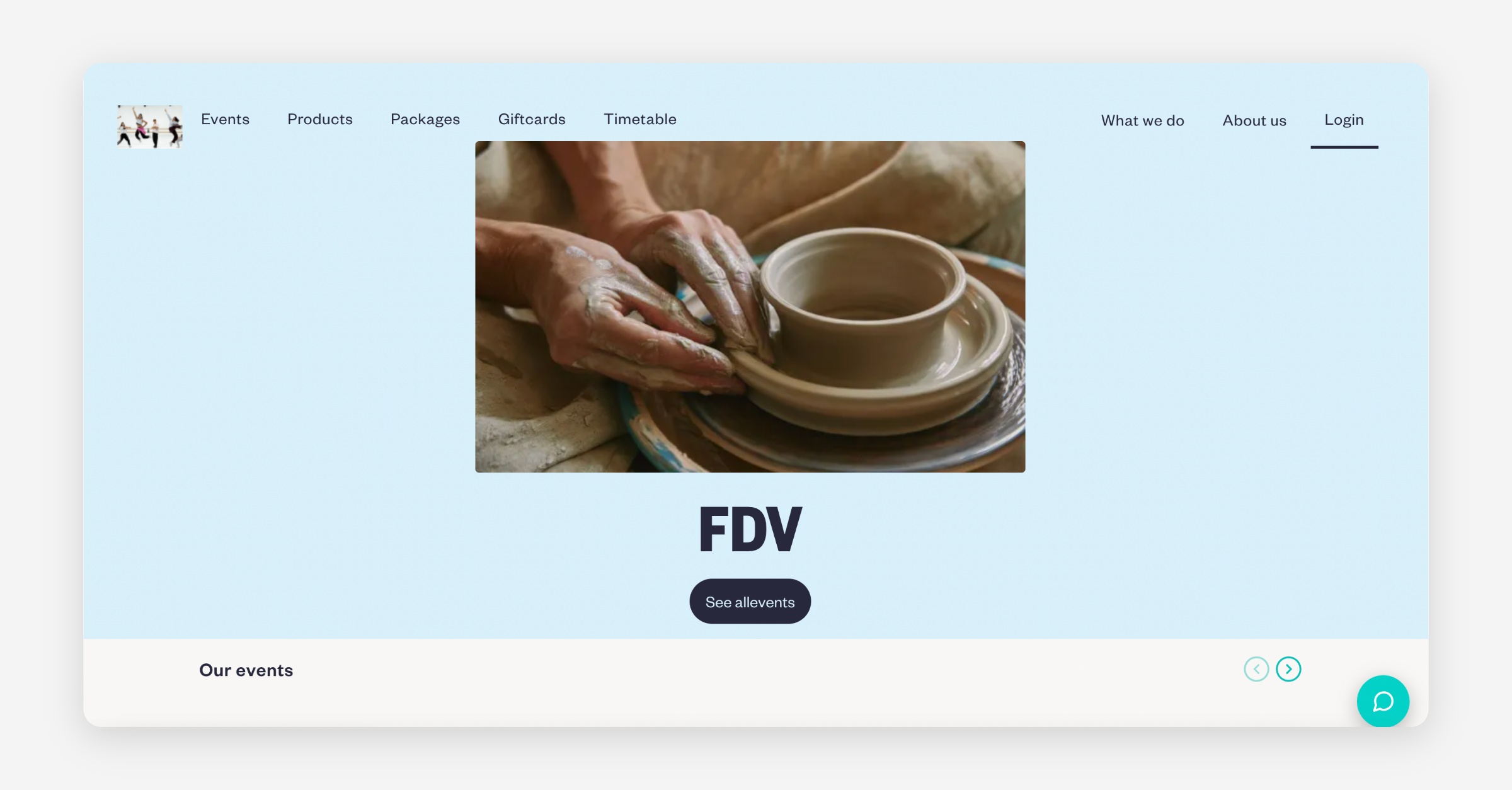
The Customer Login Centre is always enabled on Baluu. On your website, customers will see a Log In option in the navigation bar.
When customers click Log in, the ‘Sign in to your account’ panel appears.
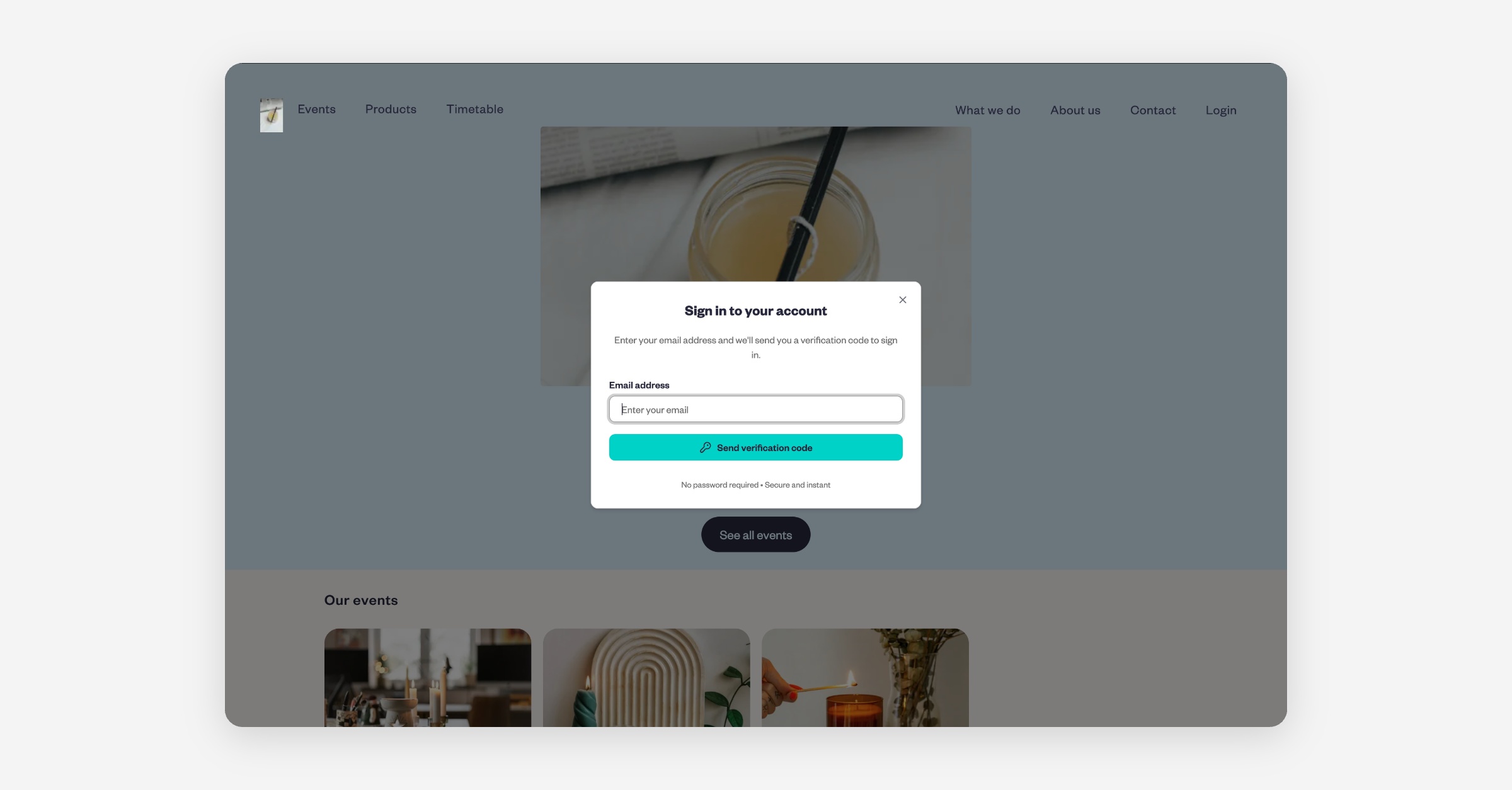
They enter their email, Baluu sends a one-time password (OTP), and they use that code to sign in. All bookings and bundles linked to that email will be visible.
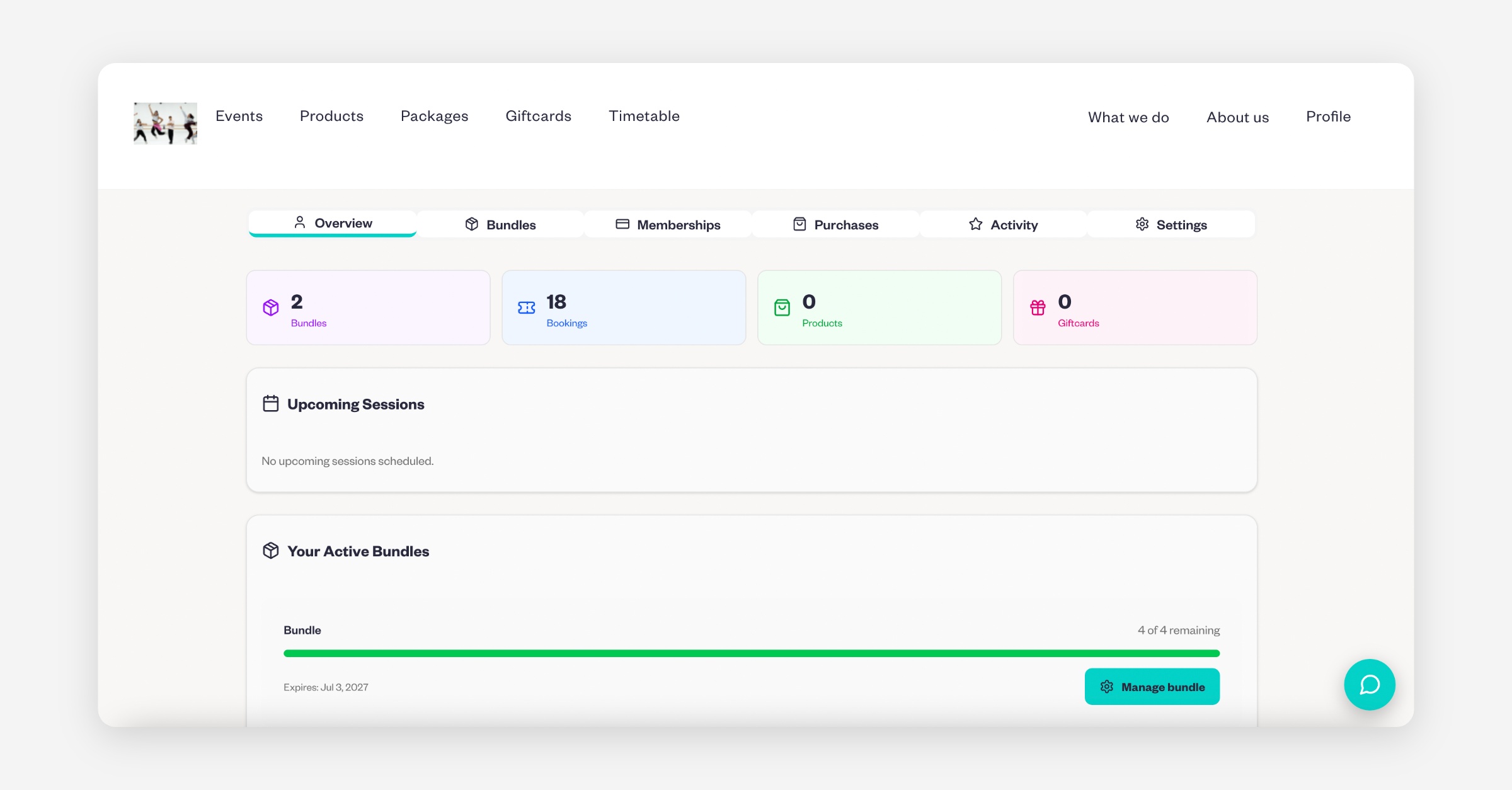
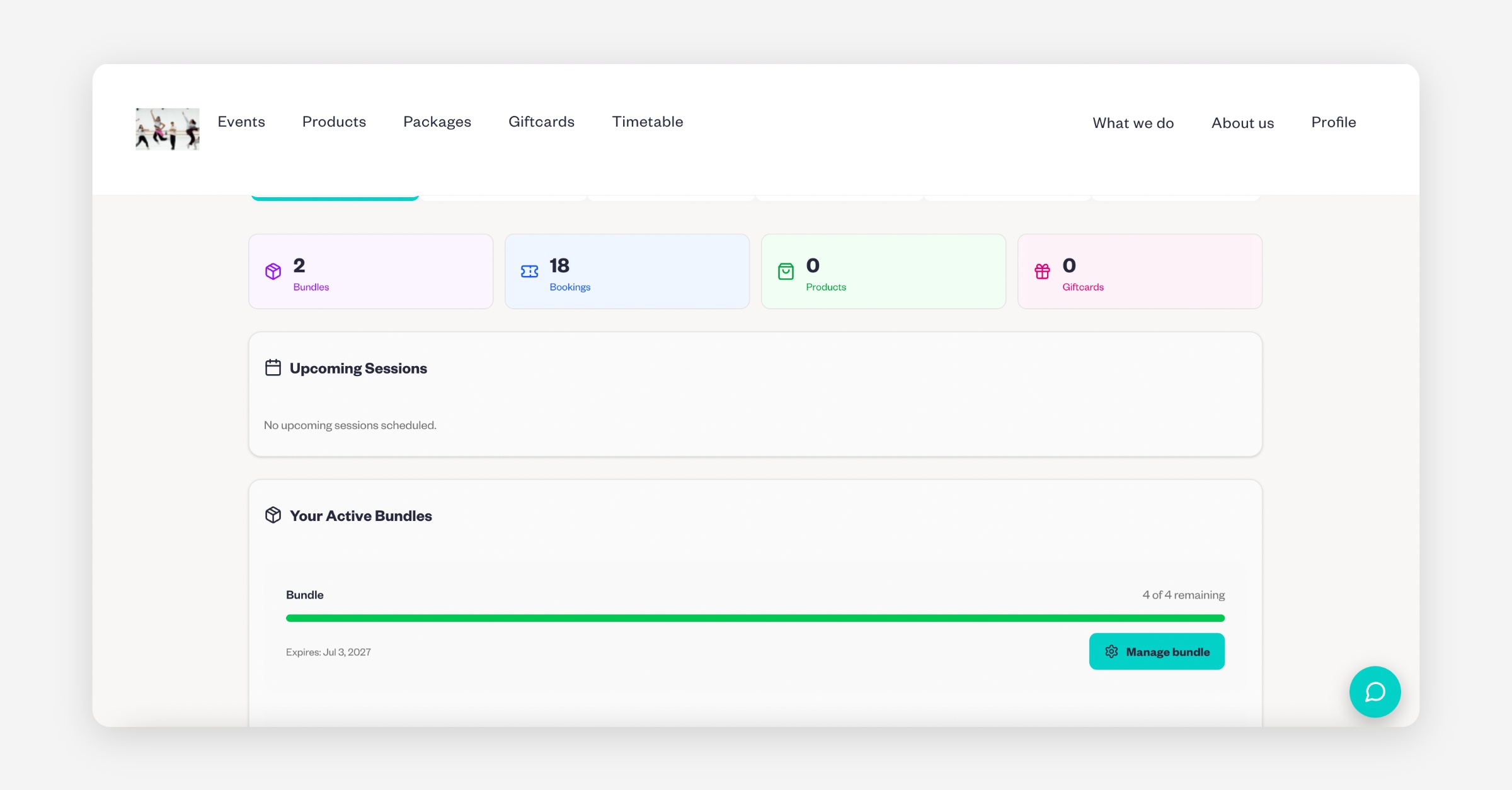
Once logged in, they should go to Profile, where they will first see the Overview page. This shows their upcoming sessions and any bundles they have.
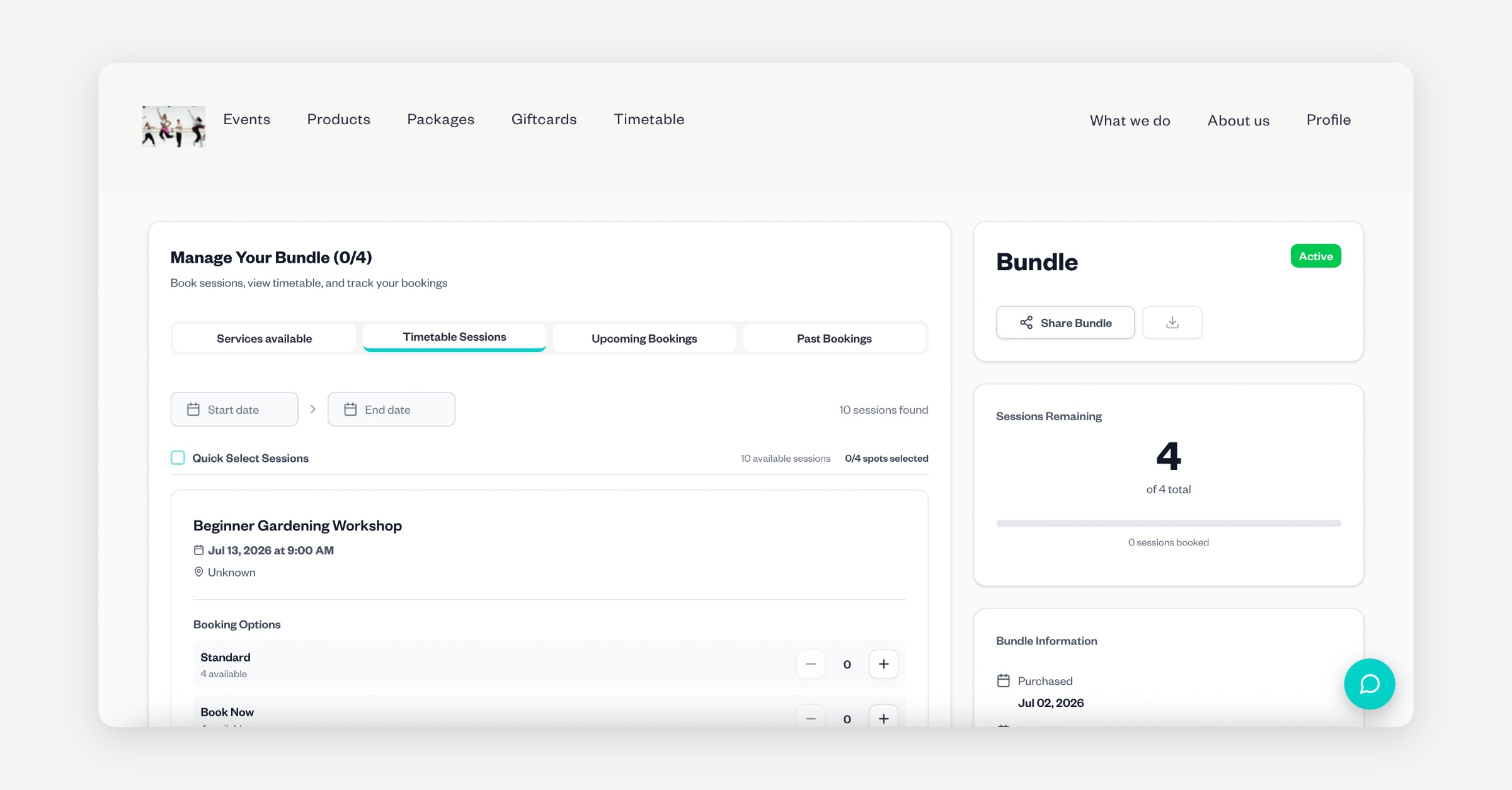
The next tab is Bundles, where customers can view all of their active bundles. By clicking Manage Bundle, they can book sessions, view the timetable, and track their bundle bookings.
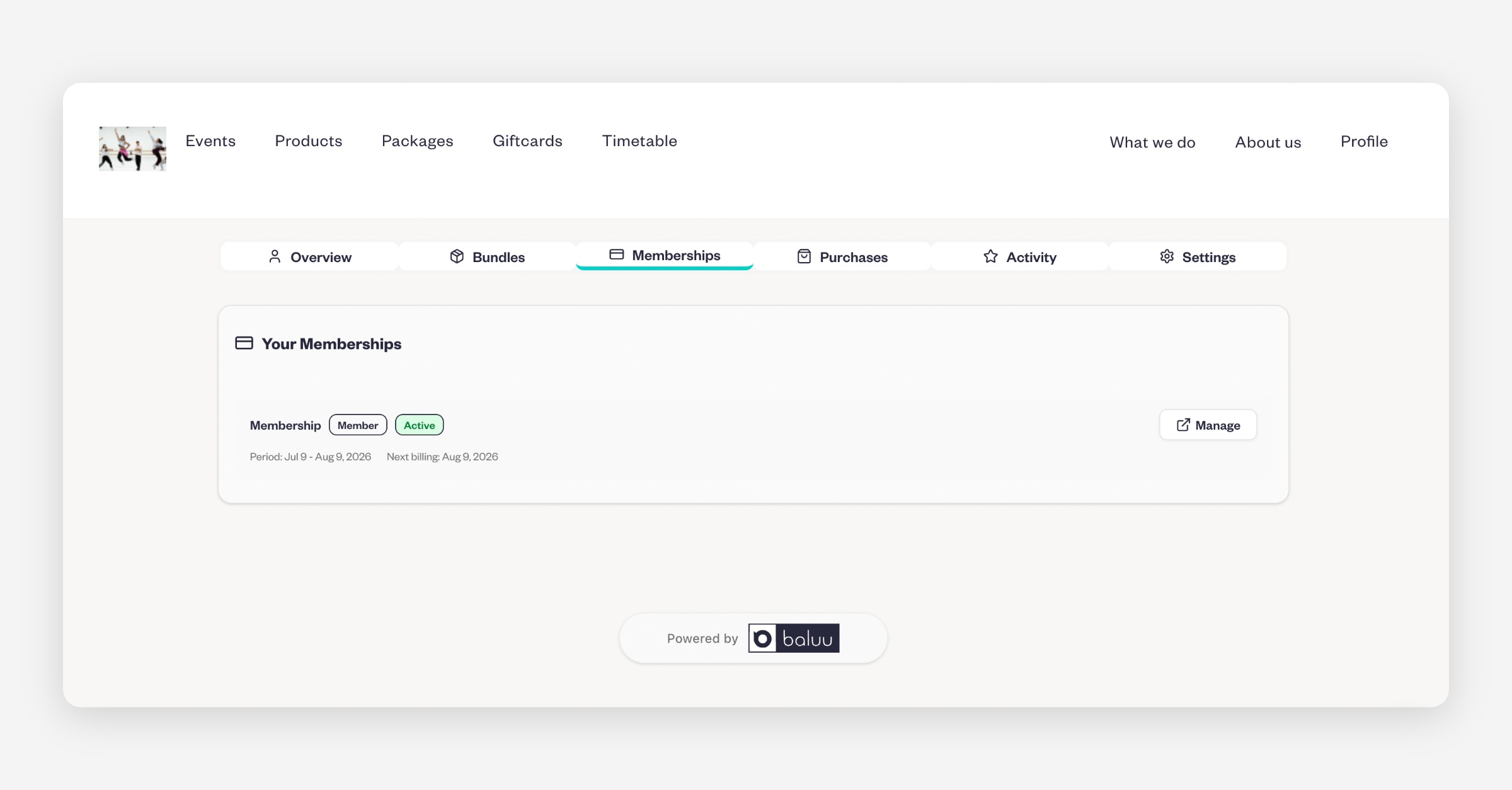
The Membership tab displays active memberships, and customers can manage them by clicking Manage.
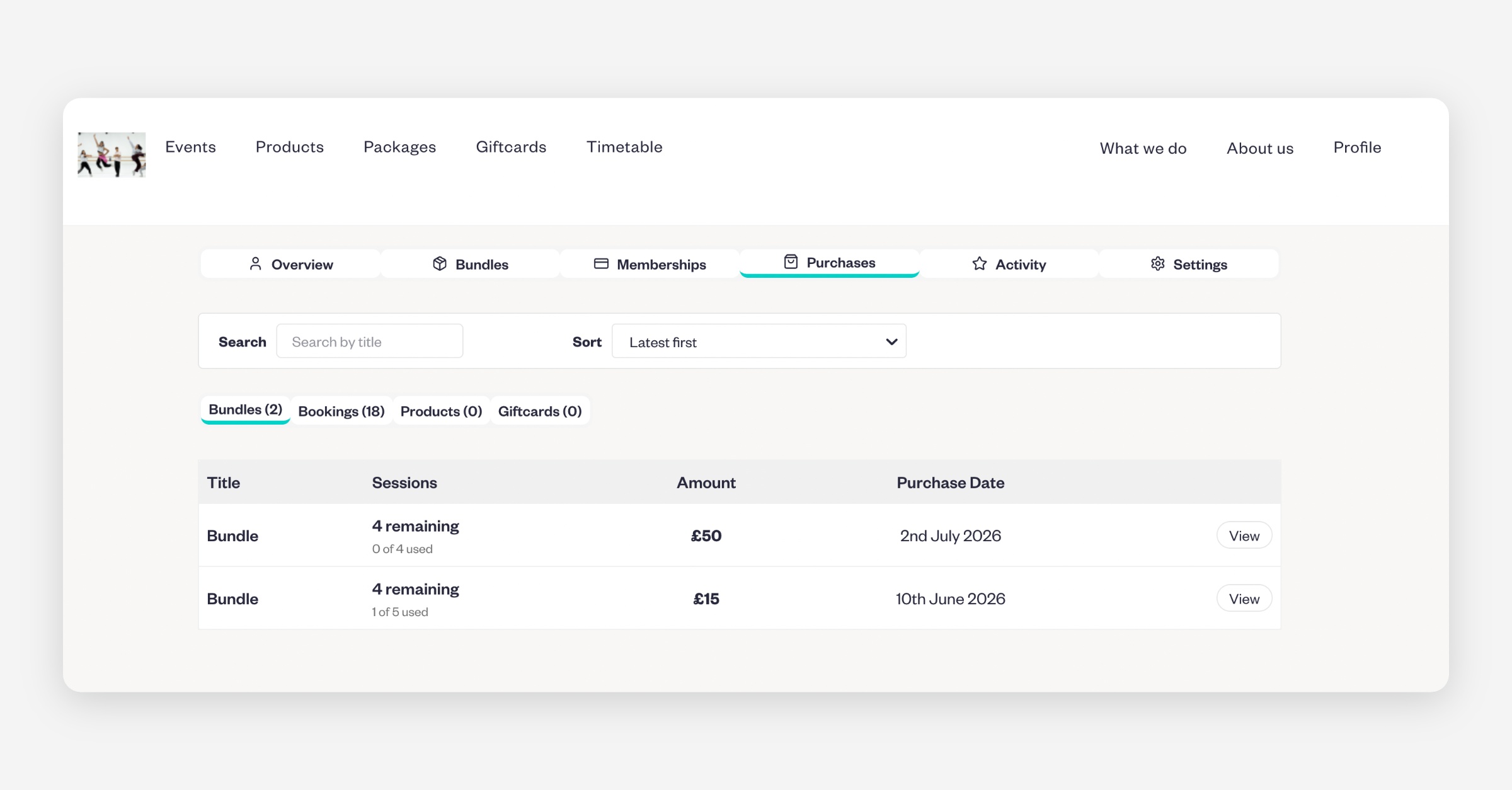
The next tab is Purchases, where they can see all bookings, bundles, products, and gift cards. Here, they can manage their bundles and book sessions using a bundle — simply click View on the bundle and then book a session.
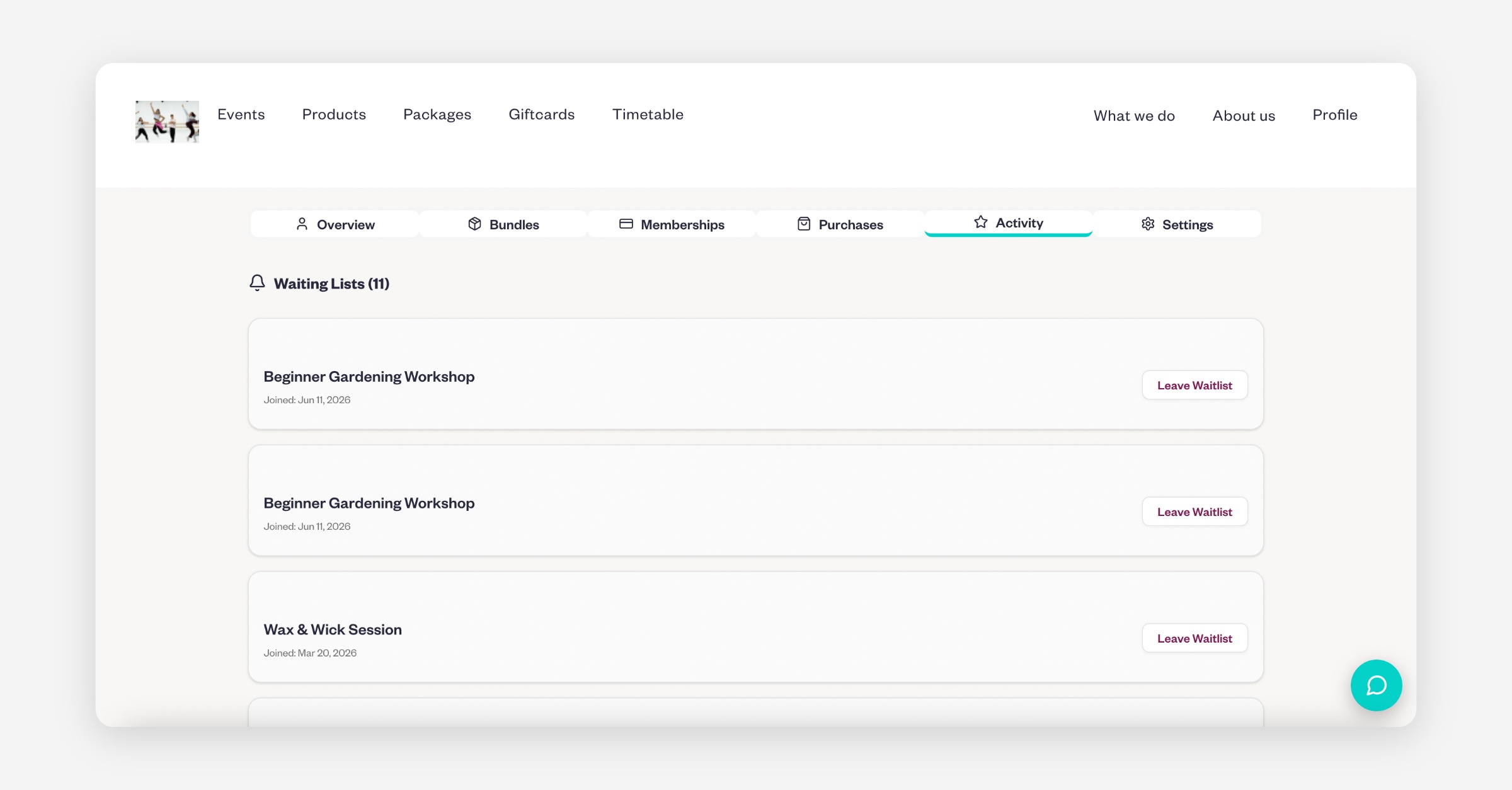
The Activity tab shows any waitlists they have joined and gives them the option to leave a waitlist.
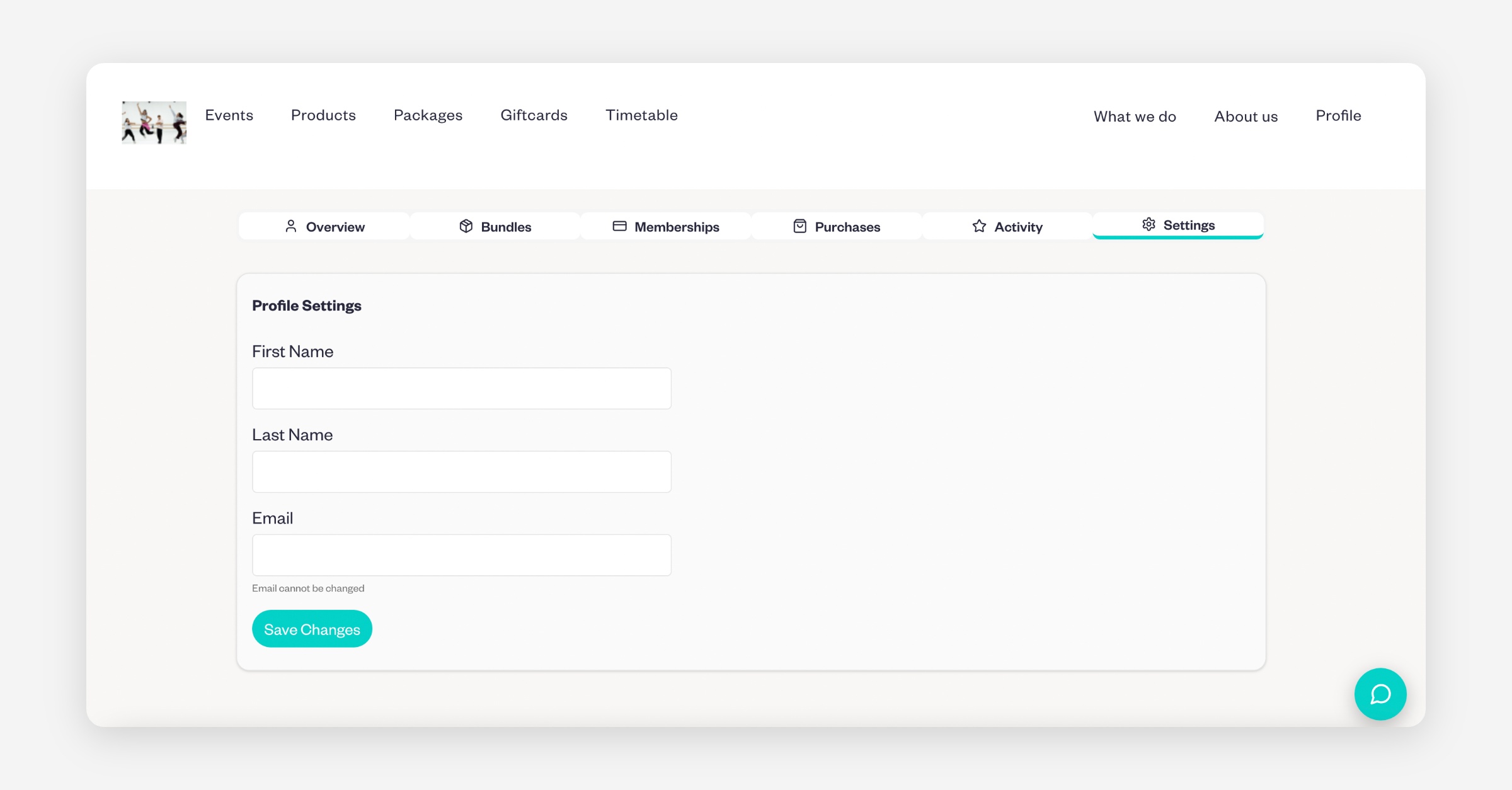
Finally, in the Settings tab, they can update their first name, last name, and email address.
Was this helpful?